 Speed Comp
Two speeds, one floor, and GPS does the rest
There is no cleverness to hide. Speed Comp reads the speed your phone already knows, maps it onto the volume steps your phone already has, and moves the volume the same way your thumb would — only continuously, and without your thumb.


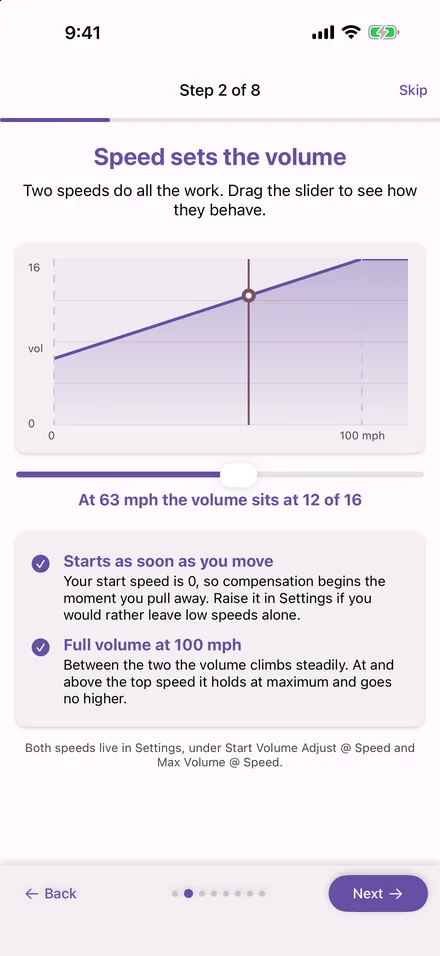
The curve
Two numbers you choose, and a straight line between them.
You set a start speed and a top speed, in MPH or KPH. Below the start speed the app does nothing at all — your volume is whatever you left it. Between the two, the volume climbs in a straight line from your baseline to the phone's maximum. At and above the top speed it holds at the maximum and goes no higher.
Where you put the two numbers is the whole setup. A boat that spends its life between no-wake and 35 mph wants a narrow range; a motorcycle that cruises at 70 wants a wide one and a higher start, because engine and tyre noise cover the low speeds and wind only takes over later. Each vehicle page on this site suggests a starting point, and the built-in simulation lets you hear the result before you go anywhere.
Phones do not have a continuous volume. iPhone and Android both move in a set of discrete steps — sixteen on iPhone, a similar number on most Android phones — and that is what the curve is mapped onto. At any given speed the app works out which step the line lands on and sets it; as the speed changes, so does the step.
Two consequences follow. First, a small change in speed can cross a step boundary and produce an audible jump, which is what the Pro smooth gain feature removes by filling in the space between the steps. Second, the resolution is the phone's, not ours: sixteen steps is what you have to work with, and the app never pretends otherwise.
The floor
The volume you start at is the lowest it will ever be.
When you tap start, the app captures the volume the phone is at right then and treats it as the baseline. Compensation only ever adds to that number. Slow to a stop and the volume comes back to exactly the baseline — never below it, never to some remembered level from another day.
That makes the setup routine simple: set the volume that sounds right while stationary, then tap start. If it is too quiet when you stop, the baseline was too low; stop, turn it up, start again.
The home screen keeps you honest about it: the readout shows the current volume alongside how much of it the app has added, so a reading of "Volume: 13, Compensation: +3" means a baseline of ten with three steps on top. Arrows on the same card nudge the volume up or down without leaving the screen.
What you see
Screens from the iPhone app. The Android app has the same screens with Android's own controls.
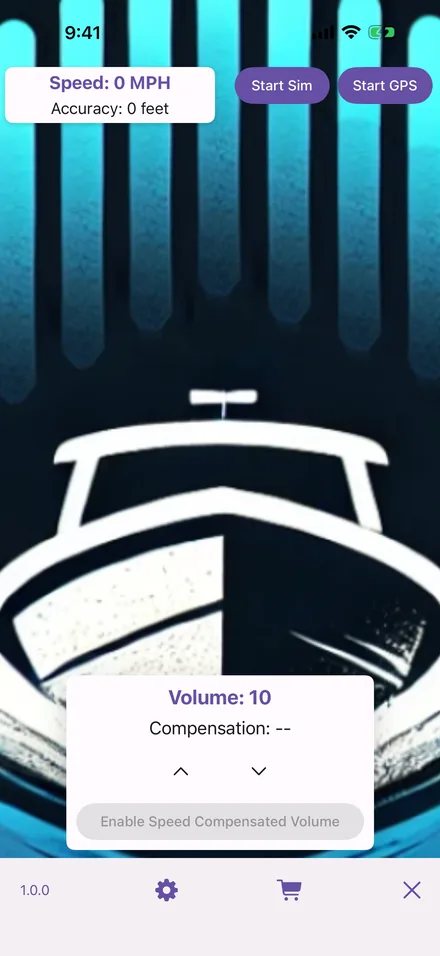
Before you start
Speed, current volume, and the two ways to begin — real GPS or the simulation.
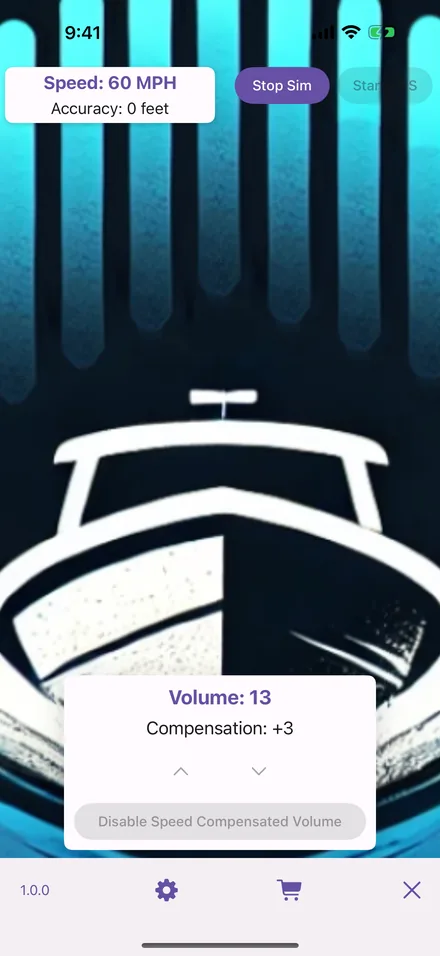
Running
At 60 MPH the app has added three steps to a baseline of ten.
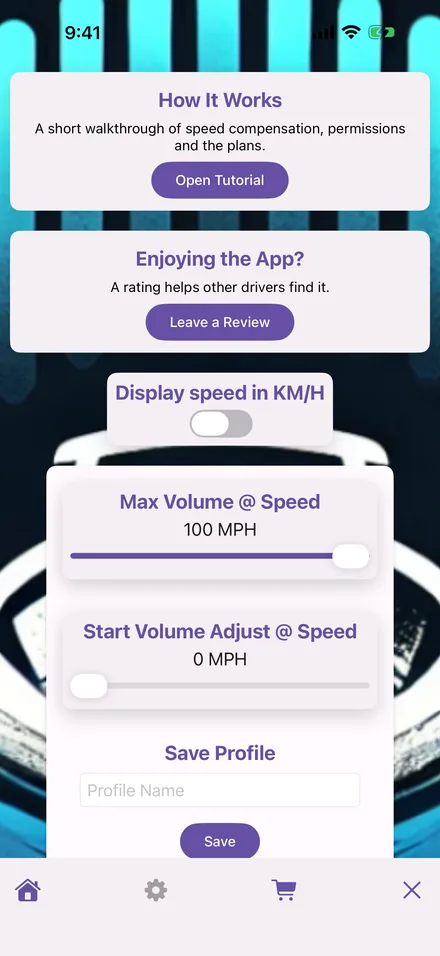
Settings
The two speeds, the unit, the update rate, and the switches for the extras.
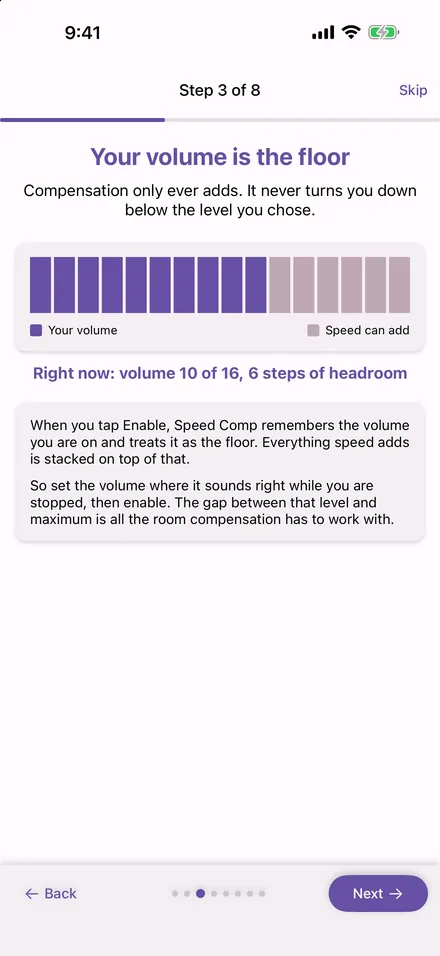
The tutorial
Eight short steps the first time you open the app, covering everything on this page.
While you ride
Screen off, phone put away, still running.
On iPhone
The app asks for location "While Using" plus background updates, and iOS shows its location indicator the whole time a run is on. A Live Activity on the Lock Screen shows speed, volume and the amount added, with a Stop button. Nothing about it needs a notification permission.
On Android
The app runs as a foreground service with an ongoing notification — the standard way Android keeps something running with the screen off, and the reason you always know it is on. The notification has a Stop button.
On both
A session on the free tier runs for up to two hours, then stops on its own; start it again for another two. Plus and Pro remove the clock. Stopping a session returns the volume to your baseline.
Try it parked
The simulation is the real thing with a fake speedometer.
Turn on simulation settings and a Start Sim button appears next to Start GPS. It ramps a made-up speed from a standstill to your top speed and back, and feeds it through exactly the code path real GPS readings take — the same curve, the same steps, the same floor. Whatever you hear in the garage is what you will hear on the water.
Use it to pick your two speeds, to hear what the Pro smooth gain does to the step boundaries, and to check that your speaker or headset is receiving the change before you rely on it. It is also how the app was demonstrated to the app stores' reviewers, who did not get to take it on a boat either.
The extras
What a subscription adds, and how each one works.
Profiles Plus & Pro
A saved profile keeps your speed settings under a name — one for each thing you ride. Switch profiles and the settings move to match. Plus keeps three; Pro keeps as many as you like.
Smooth gain Pro
Fills the gaps between the phone's volume steps so the ramp is a glide rather than a staircase. On iPhone this is a fractional system volume. On Android it is an audio effect attached to your player's session — open Speed Comp before the music app so it can attach as that app starts playing.
Now playing Pro
Track, artist and album art on the home screen with play, pause and skip. On Android it follows whichever app is playing. On iPhone it shows Apple Music, because that is the only player iOS lets an app read.
Where your data goes
Speed Comp needs precise location because that is the only way a phone knows how fast you are moving. It does not follow that the app needs to keep it, and it does not.
- Your location never leaves your device. Speed is read, turned into a volume, and discarded; no location history is kept, not even on the phone.
- No ads, no advertising ID, no tracking, no account.
- Anonymous usage analytics only — which screens are opened, whether a session or a purchase went through. The policy lists every event.
See it for yourself
Free on iPhone and Android. Run the simulation in the garage and hear the curve before you ride.