 Speed Comp
Music that keeps up with the bike
Wind roar in a helmet climbs fast — what is comfortable pulling away from a stop is gone by the time you are cruising. Speed Comp raises the volume your phone sends to your helmet headset as you speed up, and eases it back as you slow, so both hands stay on the bars.
Any Bluetooth helmet headset or earbuds your phone plays to. Naked bikes, tourers, adventure bikes, scooters.
The roar climbs with speed
Helmet wind noise rises steeply as you go faster. A fixed volume is either too quiet at cruise or painful at a stop.
Gloves and a jog wheel
Headset buttons under a winter glove, on the move, are a gamble. Set the range once and stop reaching for them.
Loud where it matters, quiet at the lights
The level that cuts through at cruise is uncomfortable at a stop. Speed Comp comes back to your baseline as you slow, every time.
Built for the headset
Speed Comp moves the phone's media volume, so whatever headset your phone plays to follows along. Nothing to pair or configure on the headset itself.
Three moving parts
Set a speed range, start compensation, and go. Everything after that is automatic.
Pick your range
Choose the speed where compensation should start and the speed where it should top out — in MPH or KPH. Below your minimum, the app leaves your volume alone entirely. On a bike, try starting around 20–25 mph — where wind starts to matter over the engine — and topping out at your usual cruising speed.
Set your baseline
Tap start at a volume that sounds right while stopped. That level becomes the floor. Speed Comp only ever adds to it — it will never turn your music down below where you set it.
Ride
GPS speed drives the volume curve continuously in the background, screen off. A Live Activity on iPhone, or an ongoing notification on Android, shows it running — with a stop button always one tap away.
Set up for the helmet
Earplugs in, then set the floor
If you ride with earplugs, put them in before you set your baseline. The floor is whatever volume you start at, and it should be right with the plugs in.
A naked bike and a faired tourer are different curves
Wind reaches you sooner on one than the other. Save a profile for each and switch before you set off. Plus keeps three; Pro keeps as many as you like.
Try it in the garage
The built-in simulation ramps a fake speed from zero to your maximum through the same path as real GPS, so you can hear the whole curve before you ride.
What it looks like
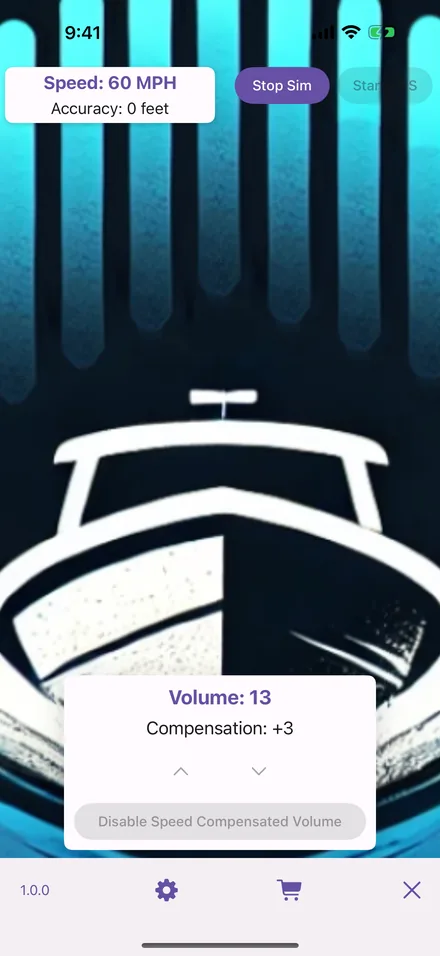
The same app on iPhone and Android: a speed, a volume, and how much the app has added.
Running
Speed, volume and the amount added, with a stop button.
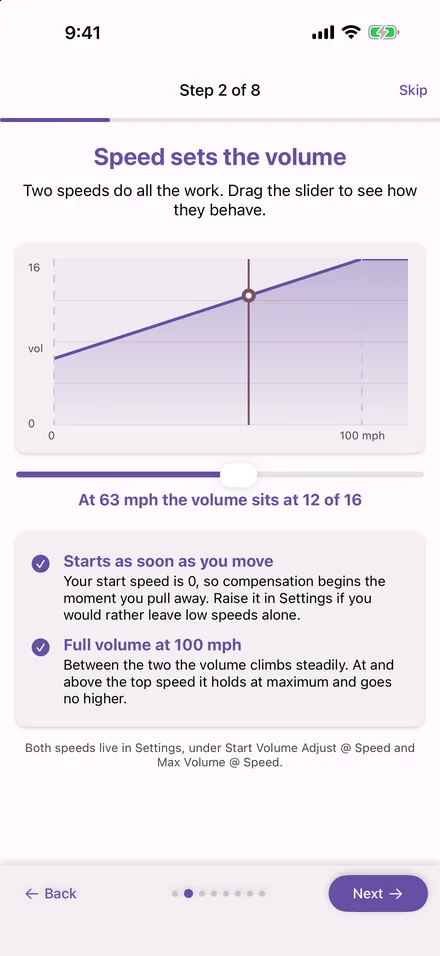
The curve
Two speeds do all the work; between them the volume climbs steadily.
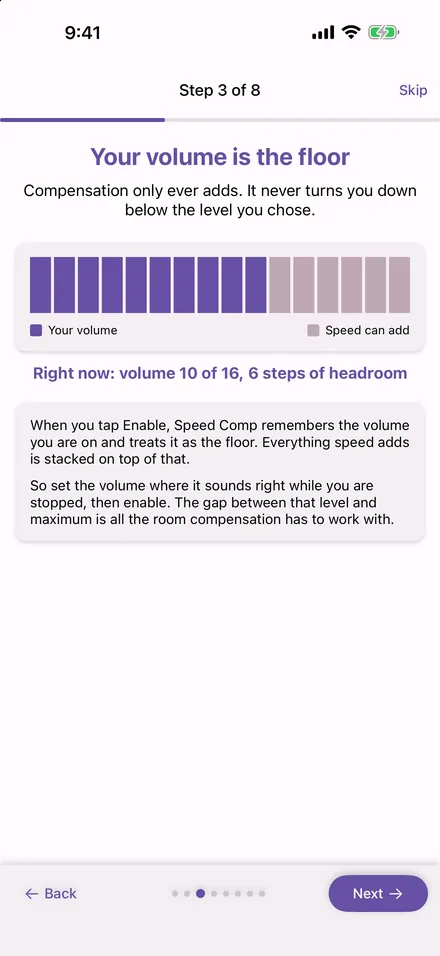
The floor
Your starting volume is the floor. The app only ever adds to it.
Free to use, for as long as you like
Speed compensation is not a trial and does not expire. The only limit without a subscription is that each session runs for up to two hours, then stops — start it again and you get another two. A subscription lifts that limit and adds the extras below.
Free
No account, no ads, no expiry date.
- Full speed-to-volume compensation
- Two hours per session, restart as often as you like
- Speed simulation for tuning while stopped
Plus
Everything in Free, without the session clock.
- No session time limit
- Up to three saved profiles
Pro
Everything in Plus, plus the audio extras.
- Unlimited saved profiles
- Smooth gain between volume steps
- Now-playing display with transport controls (Apple Music on iPhone)
Where your data goes
Speed Comp needs precise location because that is the only way a phone knows how fast you are moving. It does not follow that the app needs to keep it, and it does not.
- Your location never leaves your device. Speed is read, turned into a volume, and discarded; no location history is kept, not even on the phone.
- No ads, no advertising ID, no tracking, no account.
- Anonymous usage analytics only — which screens are opened, whether a session or a purchase went through. The policy lists every event.
Questions from riders
Does it work with my helmet headset?
With any Bluetooth headset or earbuds your phone plays music to, whichever brand. Speed Comp moves the phone's media volume, which is the level the phone sends to the headset. Headsets with their own volume control apply that on top — keep the headset's level where you like it and let the phone's move.
What about the intercom and phone calls?
Speed Comp changes media volume only — music, podcasts, audiobooks. Phone calls use their own separate volume on both iPhone and Android, and a headset's intercom is handled by the headset, so neither is touched.
Will it keep running with the phone in my jacket?
Yes. On iPhone the app keeps receiving location in the background and shows a Live Activity on the Lock Screen with a Stop button; on Android it runs as a foreground service with an ongoing notification, also with Stop. Screen off, phone sealed away — it keeps working.
What happens at a stop?
Below your start speed the volume sits at the floor — the level you set when you started. Pull away and it climbs again from there.
Will it ever turn my music down below where I set it?
No. The volume you have when you start compensation is the floor. Speed Comp only ever adds to it, and comes back to exactly that level when you stop moving.
Set it once, before you ride
Free on iPhone and Android. Pick a range in the garage and keep your hands on the bars.